Most n8n tutorials show you a node and move on. You end up with a drawer full of individual tricks — an IF node here, an HTTP call there — and no idea how they fit together into something you'd actually leave running. This post is the opposite of that. It's three complete automations, built start to finish, that you can copy today: a price monitor that texts you when something actually changes, a pipeline that turns one piece of content into five, and a support inbox that reads a message and routes it before a human even opens it.
New to n8n? Start with the complete beginner's guide — every concept explained once, with the whiteboard diagrams, then come back here.
They look like three unrelated projects. They're not. Once you've built all three you'll notice they're the same skeleton wearing different clothes, and that skeleton is the actual thing worth learning — it's what lets you design your next automation without anyone showing it to you first.
The one pattern behind every automation you'll ever build
Strip the branding off any n8n workflow that's actually useful in production and you get five steps, always in this order:
trigger → get data → decide → act → remember what you did
- Trigger — the thing that wakes the workflow up. A schedule, a webhook, a form, an incoming email.
- Get data — pull in whatever you need to make a decision. An API call, a spreadsheet row, the trigger's own payload.
- Decide — an IF, a Switch, or an AI model turning the data into a judgment: yes/no, which category, what to say.
- Act — send the message, write the row, create the ticket. The visible output.
- Remember — write down what you just did, somewhere the next run can read it back.
That last one is the step almost every beginner skips, and it's the one that quietly wrecks the automation within a day. Not because it breaks — because it never stops. Without memory, a price check fires every five minutes forever instead of once when the price actually moves. A repurposing bot regenerates the same five posts from the same article every time it runs. A support router re-routes a ticket someone already answered an hour ago. The workflow doesn't fail loudly. It just becomes noise, and noise is what gets muted, archived, or turned off — which is worse than never having built it, because now you've also lost the trust that it'll tell you something true when it matters.
Keep that sentence in your head through all three builds: an automation without memory doesn't get smarter over time, it gets ignored.
If any of the individual nodes below are new to you, the deep dives are already written — data handling, APIs and live data, AI agents, the IF node, schedule triggers, and webhooks. This post assumes you can add a node and doesn't re-teach any single one — it teaches how they combine.
Before any of the three builds, here's the question that actually decides whether your automation stays useful or turns into noise:
What does my automation need to remember?
Build 1: a price monitor that alerts on change, not on check
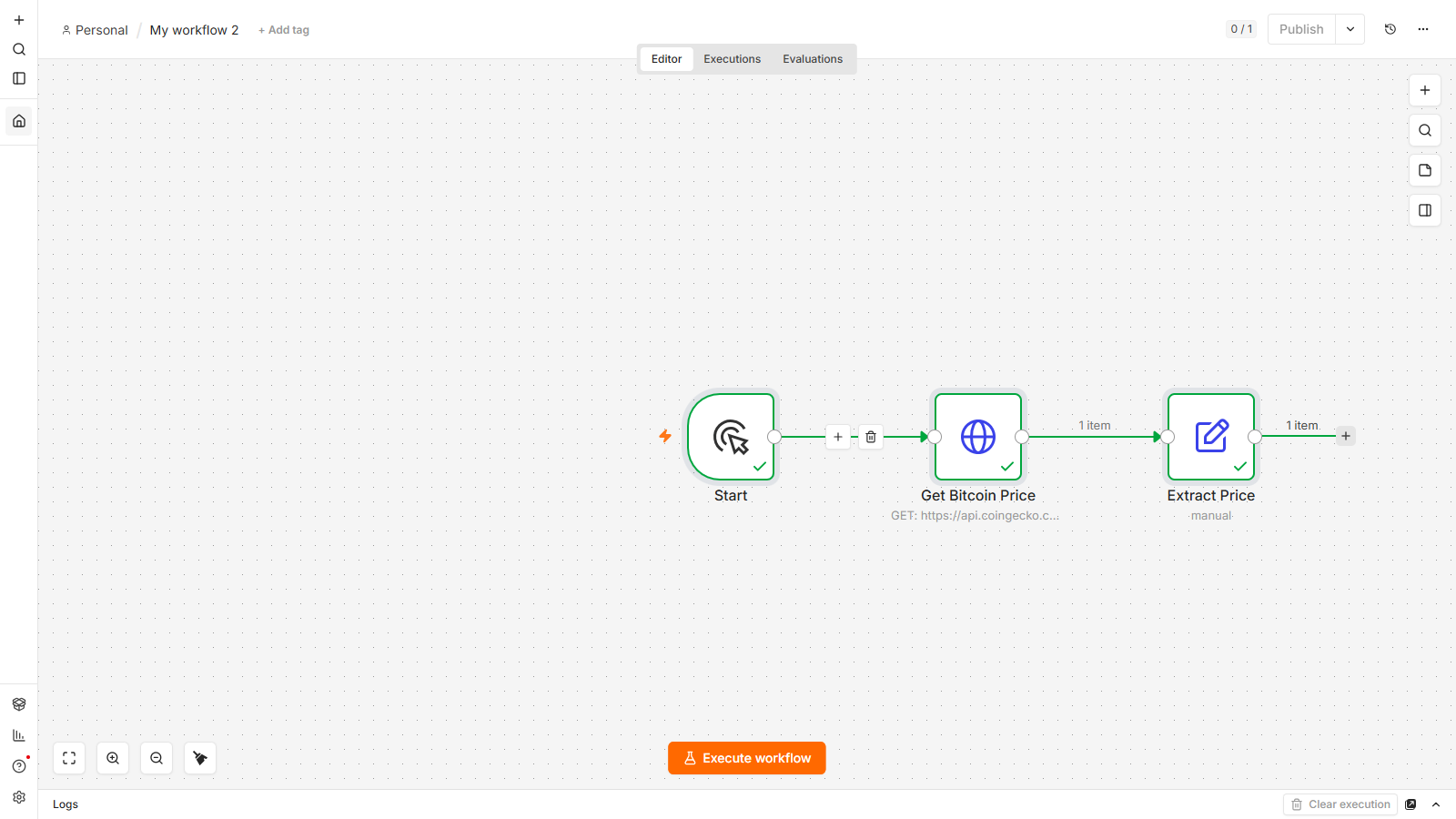
The skeleton, filled in: Schedule Trigger (every few minutes) → HTTP Request to a price API → compare against the last price you saw → if it moved past your threshold, send a message → save the new price as "last seen."
The scenario
You want a Telegram message when Bitcoin crosses a price you care about — say, $60,000 — instead of refreshing a tab all day. That's the whole job: watch a number, say something when it matters.
Building it
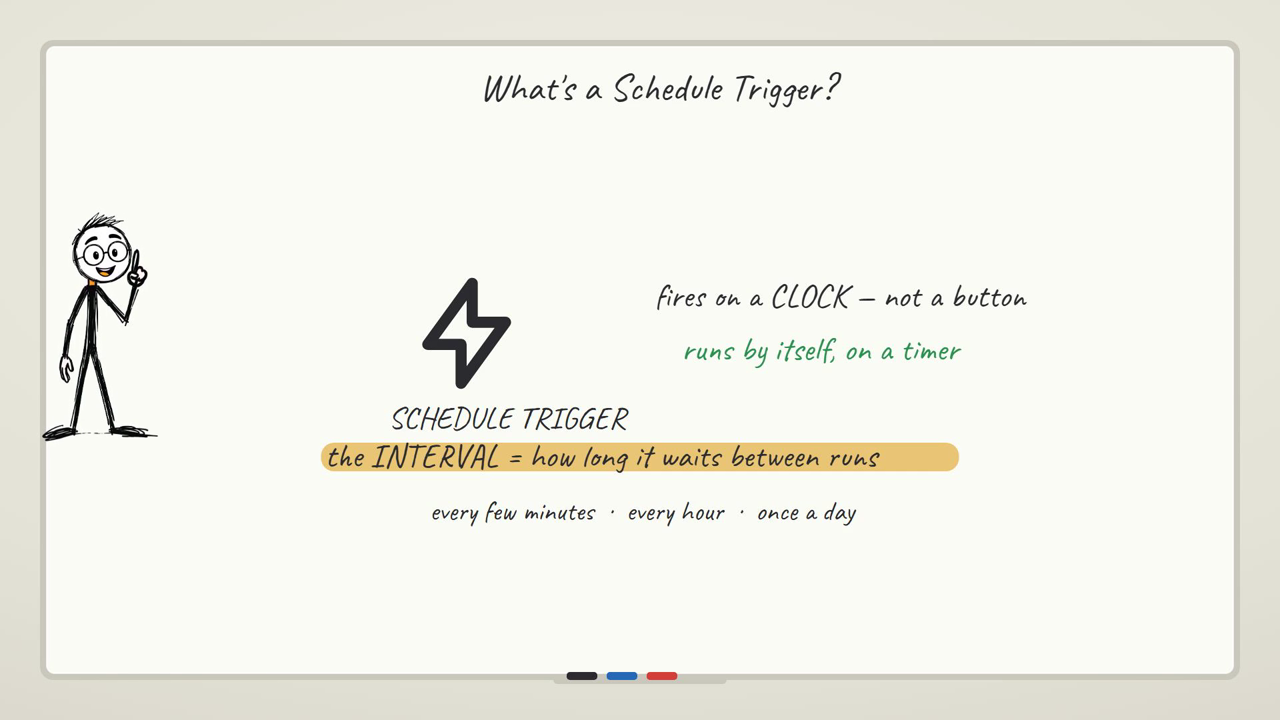
Trigger. Add a Schedule Trigger. Out of the box it defaults to once a day at midnight, which isn't what you want here — you need it checking every few minutes. Change the Trigger Interval dropdown from Days to Minutes, and a new field appears for how many minutes between triggers. Set it low enough to catch a real move (every 5 minutes is reasonable for a price you're not day-trading). Caveat, right here: people leave this on the default and come back a day later wondering why they got exactly one alert, at midnight, for whatever the price happened to be — not because anything changed, just because that's the only time the workflow ever ran.
Get data. Add an HTTP Request node pointed at a free, no-key crypto price endpoint — CoinGecko's simple price API works and needs no credential:
https://api.coingecko.com/api/v3/simple/price?ids=bitcoin&vs_currencies=usd
Run it once and you'll see the response land as { bitcoin: { usd: <number> } }. That number is what everything downstream reads with the expression {{ $json.bitcoin.usd }}. Caveat: this free tier rate-limits if you hit it too often or re-run it repeatedly while you're testing — you'll see the node fail with a plain connection or timeout error, not a helpful "slow down" message. If you're going to leave this checking every few minutes for real, turn on the node's retry settings (on the node's Settings tab: retry on fail, a couple of tries, a short wait between them) so a single flaky call doesn't take out the whole run.
Decide. Add an IF node after the HTTP request. The left side of the condition is an expression — {{ $json.bitcoin.usd }} — the right side is your threshold, say 60000. You have to set the condition's type to Number and pick "is greater than" before you type the values, not after: switching the data type on an IF node clears whatever you'd already typed into both sides. Do the operator first, then fill in the numbers. Caveat, and this is the one that actually costs people a wasted afternoon: if you leave the condition on its default "is equal to" with a String comparison, it will basically never fire, because the exact price will essentially never be equal to your typed number. The run goes green, an item lands on the false branch every single time, and there's no error anywhere telling you the condition is the wrong kind — it just quietly never triggers.
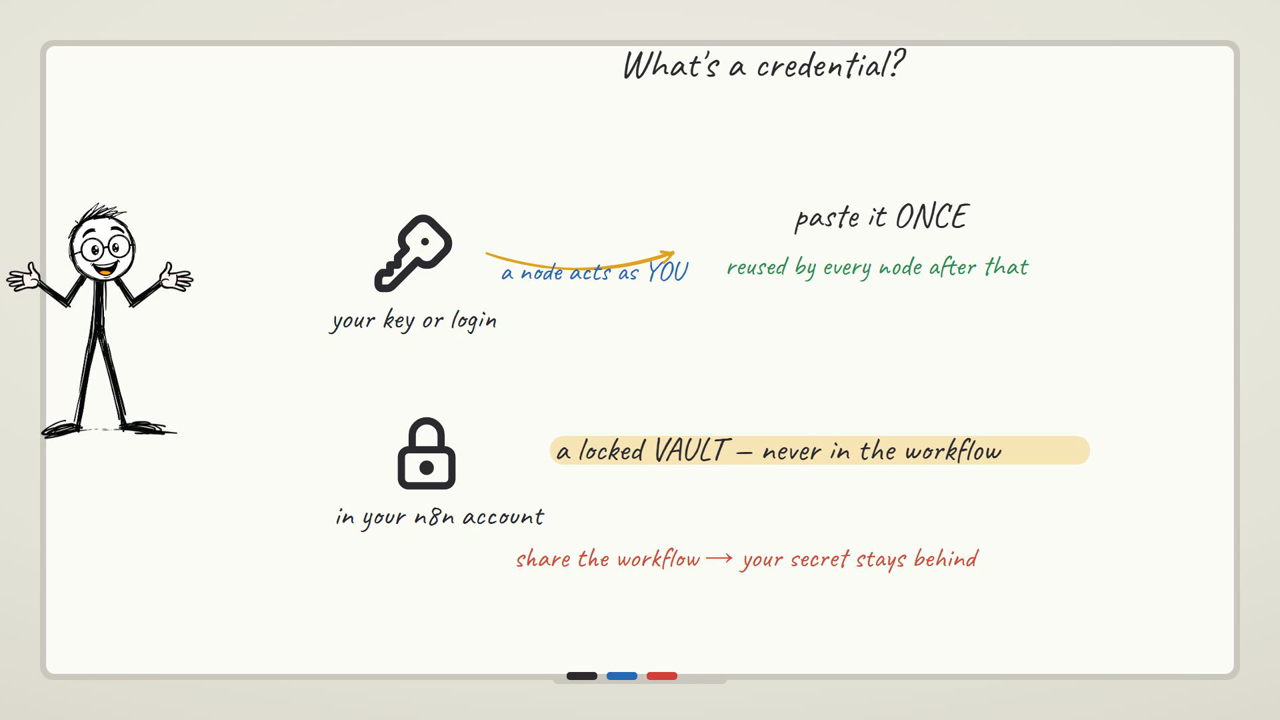
Act. Wire the IF node's true output to a Telegram node, action "Send a text message." You'll need a Telegram credential and a chat ID — a Telegram bot can't cold-DM you; you have to message the bot first so it has somewhere to reply to.
The message text is an expression too, something like BTC just crossed $60k — now at {{ $json.bitcoin.usd }}. Caveat that will bite you the first time: the text field is only read as an expression if the string starts with =. Type a plain string with {{ }} in the middle of it and Telegram sends the literal curly braces to your phone instead of the number — you'll see the raw {{ $json.bitcoin.usd }} show up verbatim in the chat, which looks broken because it is.
Remember. This is the step that turns "checks the price" into "alerts on a real change," and it's the one this build doesn't earn its name without. Before you finish, add somewhere to store the last price you alerted on — a row in a Google Sheet, or a row in n8n's own built-in Data Table node, either works, and both let you both write a value and read it back on the next run. The IF condition then isn't just "is the price above 60000," it's "is the price above 60000 and different from the last price I stored." Write the new price back after you send the alert. Caveat, spelled out concretely: skip this step and the workflow is completely correct and completely useless at the same time — every single run where the price is above your threshold sends another message. If the price sits above $60k for six hours and you're checking every 5 minutes, that's 72 messages, and by message four you've muted the bot, which means the one time the price actually does something dramatic, you don't see it either.
What this doesn't handle
This build alerts on one threshold crossing in one direction. It won't tell you the price crossed back down, and it won't handle "alert me on any 5% move" without you doing a bit more math in the decide step (comparing against the stored last price rather than a fixed number). It's also only as reliable as the free API — for anything you'd bet real money reacting to, you'd want a paid feed with an SLA, not a rate-limited public endpoint.
Build 2: turning one piece of content into five, without it reading like a robot wrote it
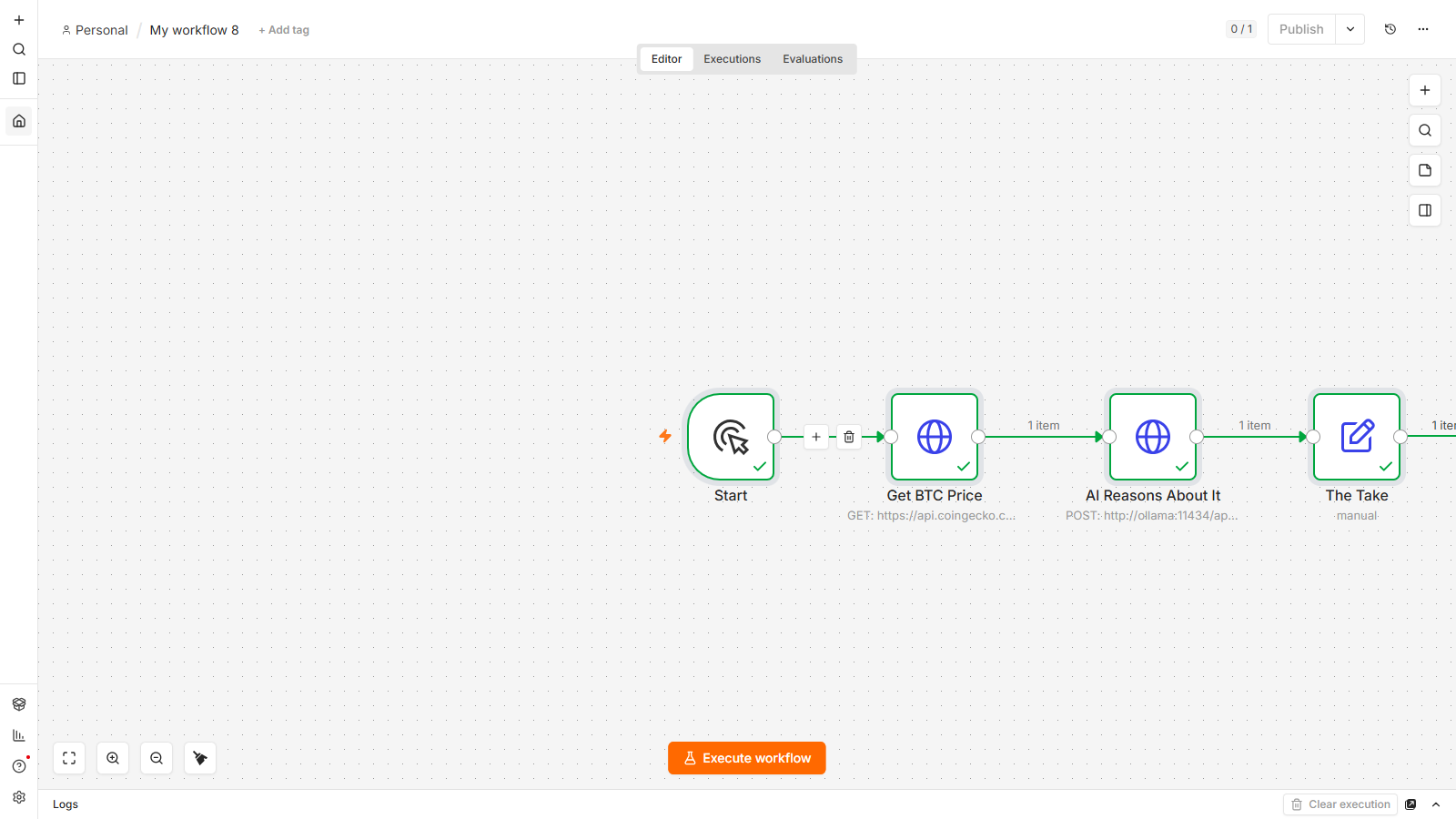
The skeleton, filled in: trigger on a new item (a form, a webhook, or a schedule that pulls a feed) → get the source text → an AI step decides how to reshape it for each platform → post or save each variation → log which source you've already used so you don't repurpose it twice.
The scenario
You publish one piece — a blog post, a video description, a long-form idea — and want it turned into, say, a LinkedIn post, a couple of tweet-length lines, and a short caption, without retyping it three times yourself.
Building it
Trigger and get data. The simplest version of this pulls from an RSS Read node, which fetches and parses a feed in one step — no separate HTTP call, no XML wrangling. Point it at your own blog's feed, or any stable feed while you're testing (pick something calm and topical rather than a breaking-news feed you don't control — you don't want a headline you didn't choose landing in a generated post). Each item comes back as a flat object with a title, a link, and the body content, so {{ $json.title }} and {{ $json.content }} are what you feed downstream. Caveat: an RSS feed can go quiet, change shape, or briefly 404, and your workflow won't complain — it'll just run with zero items that cycle, which looks identical to "nothing new was published today." Worth a periodic manual check that it's actually still returning items.
Decide. This is where the AI step lives — pass the article's title and body into an AI node (an OpenAI-type "message a model" call, or your own local model if you're working from the free local AI setup) with a prompt that asks for the specific transforms you want: a LinkedIn-style paragraph, three short standalone lines, a one-sentence caption. Caveat that matters if you're chaining this to another node: different node versions of AI-style nodes shape their response differently — sometimes the answer sits at $json.message.content, other times it's nested deeper under an output/content array. If your next node reads text that comes back as literally nothing, it's very often this: the expression is pointed at a field the response doesn't actually have, and n8n won't error, it'll just resolve to blank. Run the node once by itself first and actually look at the output panel structure before you write the expression that reads from it — don't guess the shape.
Act. Wire each variation to wherever it needs to land — a Google Sheet as a drafts queue is the easiest starting point (Append row, one row per variation, columns for platform / text / source link), and from there you can graduate individual rows to actually posting once you trust the output. Sheets is a reasonable place to start because you get a visible, editable holding area before anything goes out under your name.
Remember. Store the source article's link or ID somewhere the next run checks against — a column in that same sheet, or a Data Table row keyed on the feed item's guid. Before you generate anything, look the ID up: if it's already there, skip it. Caveat, spelled out: without this, the RSS feed keeps returning the same recent items on every scheduled run (feeds don't disappear the moment you've read them), and you regenerate five new variations of an article you already repurposed yesterday — burning API calls and filling your drafts sheet with duplicates that all look slightly different but say the same thing, which is confusing in a way that's genuinely hard to notice until your queue is fifty rows deep.
The honest limitation — this is the part that's actually the work
Getting an AI model to produce five variations of one article is the easy 20%. The other 80% is that five variations of the same source, generated the same way, tend to sound like five variations of the same source — same sentence rhythm, same opener, same three adjectives. A reader who follows more than one of your channels will clock it.
Two things actually help. Give each platform prompt a genuinely different job, not just a different length — LinkedIn is "make the argument," a caption is "make someone stop scrolling," a tweet-length line is "say the one surprising fact." Different jobs produce different shapes of sentence, not just different word counts. And treat the drafts queue as a queue, not a firehose: read what comes out before it posts, at least until you've tuned the prompts enough that you're not editing every single one. Auto-posting straight from the model's first pass is where "content repurposing" quietly turns into "content that all sounds the same," and that's a cost to your actual audience, not just an inconvenience.
Build 3: an AI router that reads a request and sends it somewhere — including "nowhere obvious"
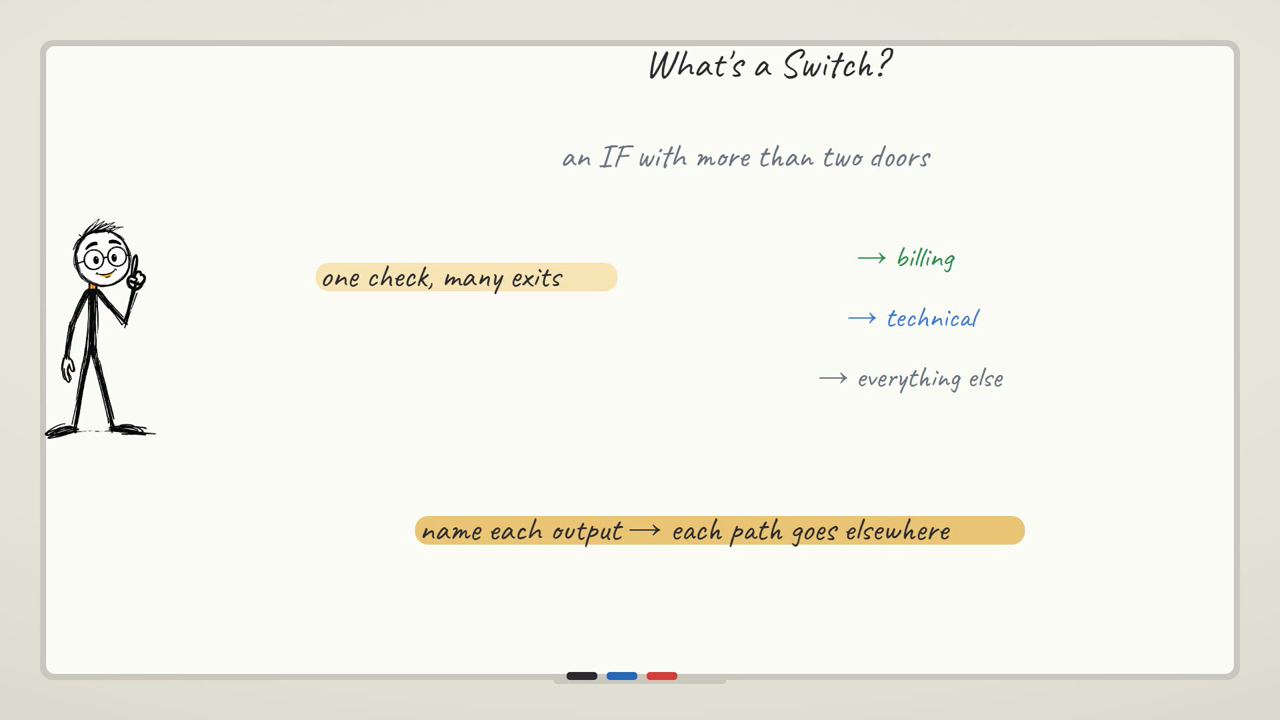
The skeleton, filled in: trigger on an incoming message (a form, a webhook, or a chat trigger) → get the request text → an AI step classifies it into a category → a Switch node routes each category to a different action → log the ticket and its outcome so it isn't handled twice.
The scenario
A support request comes in — a form submission, an email, a Telegram message — and instead of a human reading every single one first, the workflow reads it, decides what kind of request it is (billing, technical, "just saying thanks," something else entirely), and routes it: an auto-reply for the easy ones, a ticket for the human queue for the hard ones.
Building it
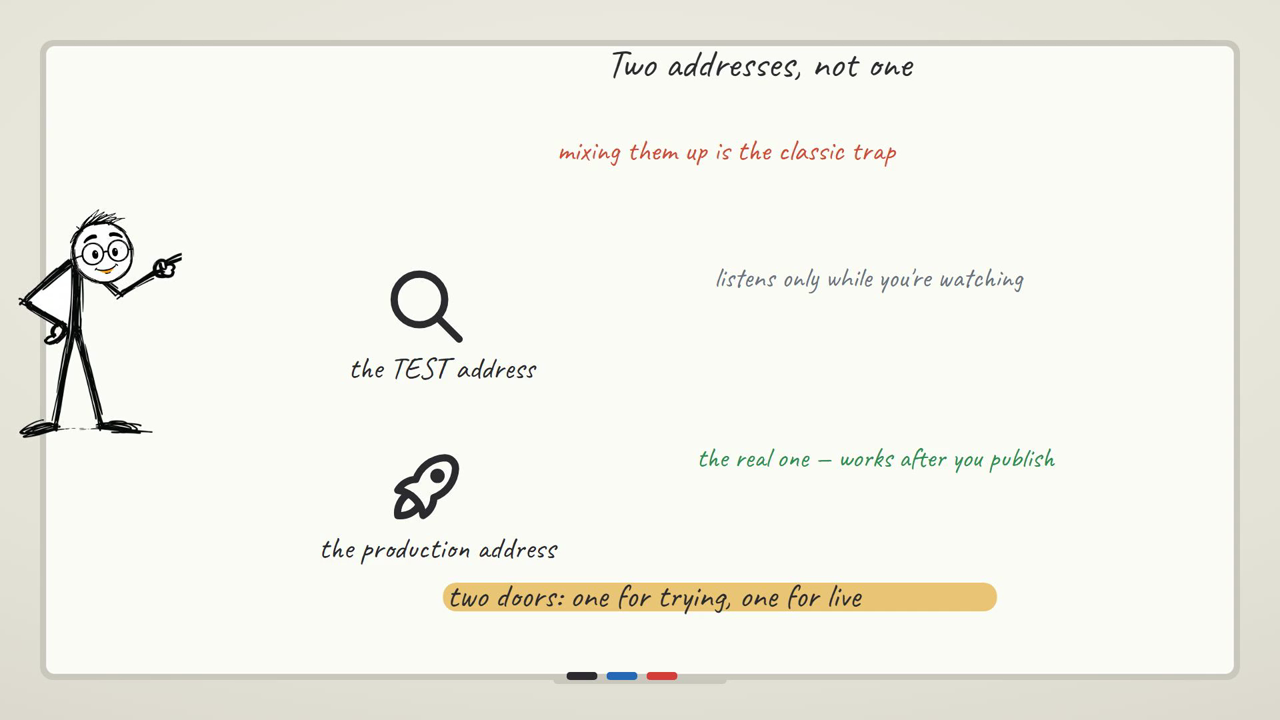
Trigger and get data. For testing, a manual trigger feeding a sample message field works fine; the real version swaps that for a Webhook or a Telegram Trigger, so the actual incoming message flows in live instead of a value you typed. Caveat on the webhook specifically: the workflow only produces output when the URL is actually called — if you're staring at an empty output panel while testing, check you're calling the Test URL (the one shown while "Listen for test event" is armed) and not the address you'll only get once the workflow is published.
Decide. Send the incoming text to an AI node with a prompt that asks it to output one of a small, fixed set of category labels — not free text, an exact word from a list you define, like billing, technical, feedback, other. Fixed labels matter here because the next node is going to compare against them exactly. Add a Switch node after it, with one routing rule per category, each comparing the AI's output text against one of your labels.
The part every routing build gets wrong if you stop here: something will always arrive that doesn't cleanly fit any category you defined — a garbled message, a request in a language you didn't plan for, someone asking two things at once. If your Switch node only has rules for billing, technical, and feedback, that "none of the above" message doesn't error and it doesn't wait politely for you to notice it. It just matches none of your rules, produces zero items on every one of your Switch's outputs, and the run still reports success. Nothing breaks, nothing alerts, and the request has gone precisely nowhere — the person who sent it is now waiting for a reply that will never come, and you won't know until they follow up somewhere else, annoyed. A Switch node needs an explicit fallback path (an "other"/default output, or your other label routed to a real destination — a human queue is fine) or the classification step is actively worse than not routing at all, because at least an unsorted inbox gets looked at.
Act. Wire each Switch output to its destination — an auto-reply node for the categories that don't need a human, a row written to a "needs a human" sheet or table for the ones that do. Caveat on the AI step feeding this: whatever node produced the category label, don't trust a green "success" as proof the text you're routing on is actually there. It's entirely possible for a run to report success while the field your Switch is reading resolved to nothing — the Switch then matches nothing, silently, for a reason that has nothing to do with the categories you defined. Open the AI node's own output after a real run and actually read the text before you wire the next step to it.
Remember. Log every incoming request — its text, the category it got, and what happened to it — somewhere with a stable ID (a Data Table row, a sheet row) the moment it's handled, and check that log before acting on a request you've already seen. Caveat, spelled out: skip this and a webhook that gets called twice for the same event, or a support platform that occasionally redelivers a message, gets routed and answered twice. To the person on the other end that reads as your automation being unreliable — two different auto-replies, or a human getting pinged about something already resolved — even though the actual cause is that nothing was checking "have I already done this."
What this doesn't handle
This build classifies and routes; it doesn't resolve anything itself beyond the auto-reply cases you explicitly wire up. Anything genuinely ambiguous still needs a human to make the real call — the win here isn't removing the human, it's making sure the human only sees the requests that actually need them, and that nothing silently vanishes on the way.
Coming back to the skeleton
Look at what you just built three times over. A schedule tick and a webhook call are both just triggers. A price API, an RSS feed, and an incoming message are all just "get data." An IF node, a Switch node, and an AI classification are all just "decide" wearing different outfits. Telegram, a sheet row, and an auto-reply are all just "act." And in every single one, the thing that made it durable instead of noisy was writing down what happened so the next run could check it first.
Same skeleton, three different jobs — here's the three builds laid over it side by side:
| Build | Trigger | Decide | Act | What it remembers |
|---|---|---|---|---|
| Price monitor | Schedule (every few minutes) | IF — is the price over the threshold? | Send a Telegram message | The last price you alerted on, so it only fires on a real crossing |
| Content repurposer | RSS Read (or a schedule pulling a feed) | AI step reshapes the text for each platform | Append a row per variation to a drafts sheet | The source article's ID, so the same article isn't repurposed twice |
| Support router | Webhook or chat trigger | AI classifies into a fixed category, Switch routes it | Auto-reply, or a row in a "needs a human" queue | The request, its category, and whether it's been handled — so a redelivered event doesn't get answered twice |
That's the whole design skill: name your trigger, name what data you need, name the decision, name the action, and then ask yourself the one question that separates a toy from something you'd trust running unattended — what does this need to remember, and where does it check that memory before it acts again? Answer that for your own idea and you've designed a fourth automation nobody had to show you.
If this is the kind of build you want more of, subscribe and I'll email you when the next one lands — one email per tutorial, with the workflow and the exact settings, including the mistakes that cost me hours so they don't cost you any. Free, and one click gets you off the list. You can also browse everything on the n8n hub.
Where else this same skeleton shows up
A "new job posting" watcher for a specific company
Same shape as the RSS repurposing build, minus the AI step: a Schedule trigger checks a careers page or job board feed, an HTTP Request or RSS Read pulls the current listings, and you compare the incoming IDs against what you've already seen stored in a sheet. Anything new gets a Telegram message; anything you've already flagged gets skipped. It's the price-monitor pattern and the repurposer's memory step fused together — watch for change, remember what you've already surfaced.
An inventory or stock-level alert for a small shop
Trigger on a schedule, get data from whatever sells the product — a spreadsheet you update by hand, or a store platform's API if it has one — decide with an IF node whether stock has dropped below a reorder point, act by messaging whoever handles purchasing, and remember the last stock level you alerted on so a slow week doesn't send the same "running low" message every single morning. It's Build 1's exact skeleton with a different number being watched.
A meeting-notes-to-action-items pipeline
Trigger when a transcript or notes document lands somewhere (a form submission, a new file in a folder). Get the raw text, then an AI step decides what's actually an action item versus general discussion — the same "decide" job as the support router's classification, just pointed at a different kind of text. Act by writing each action item as a row in a task tracker. Remember which transcript you've already processed, the same guid-style check as the repurposing build, so re-running the workflow on the same file doesn't duplicate every task.
FAQ
Do I need a paid API for any of these three builds?
No. The price monitor uses CoinGecko's free, no-key endpoint. The repurposing build can run entirely on RSS (free) plus your own AI credential of choice, including a local model if you want zero per-call cost — see the free local AI agent guide. The support router needs some AI model access for the classification step, but the routing and storage nodes around it are free.
Why did my price alert fire on every single run instead of just when the price changed?
Almost always because the "remember" step is missing — the workflow is comparing the live price against a fixed threshold instead of against the last price it actually alerted on. Add somewhere to store the last-seen price and check against it before sending, not just after.
My IF or Switch node shows a successful run but nothing came out the branch I expected — what happened?
Two common causes. One: the condition's data type was set after you'd already typed the values, which clears them — recheck both sides are actually filled. Two: the value you're comparing resolved to nothing because the field name in your expression doesn't match what the previous node actually returned. Run the previous node by itself and look at its real output before trusting the expression.
What happens to a request that doesn't match any of my routing categories?
If you haven't built an explicit fallback, it goes nowhere — the run reports success, no branch fires, and nobody gets a reply or a ticket. Always give a Switch node a default or "other" output wired to something a human will actually see.
Can these three builds run unattended long-term, or do they need babysitting?
They're designed to, but "unattended" only works once the remember step is solid and you've watched a few real runs to confirm the decide step is actually catching what you think it's catching. Check in on the executions list occasionally, especially in the first week — that's where you catch a silently-failing condition before it costs you anything.
Is the AI-generated content from the repurposing build safe to auto-post without review?
Not at first. Treat the first batch as a drafts queue you read before anything goes out publicly, and only start trusting it more once you've tuned the prompts enough that the output stops sounding like five versions of the same paragraph.
Do I have to use Google Sheets for the "remember" step, or can I use something else?
Sheets is the easiest starting point because it's visible and you can edit it by hand while you're debugging. n8n also has a built-in Data Table node that does the same job without leaving n8n or needing a Google credential — either works for these builds; pick whichever you'd rather look at.
What's the actual difference between this guide and the individual node tutorials on the site?
The node tutorials teach one node in depth. This post assumes you already know how to add a node and shows how several combine into something you'd actually leave running — the design pattern, not the button-by-button mechanics.